Opening a Shared Mailbox
On the Outlook web client:
- Go to outlook.com/uci.edu and sign in with your AD/Microsoft 365 login.
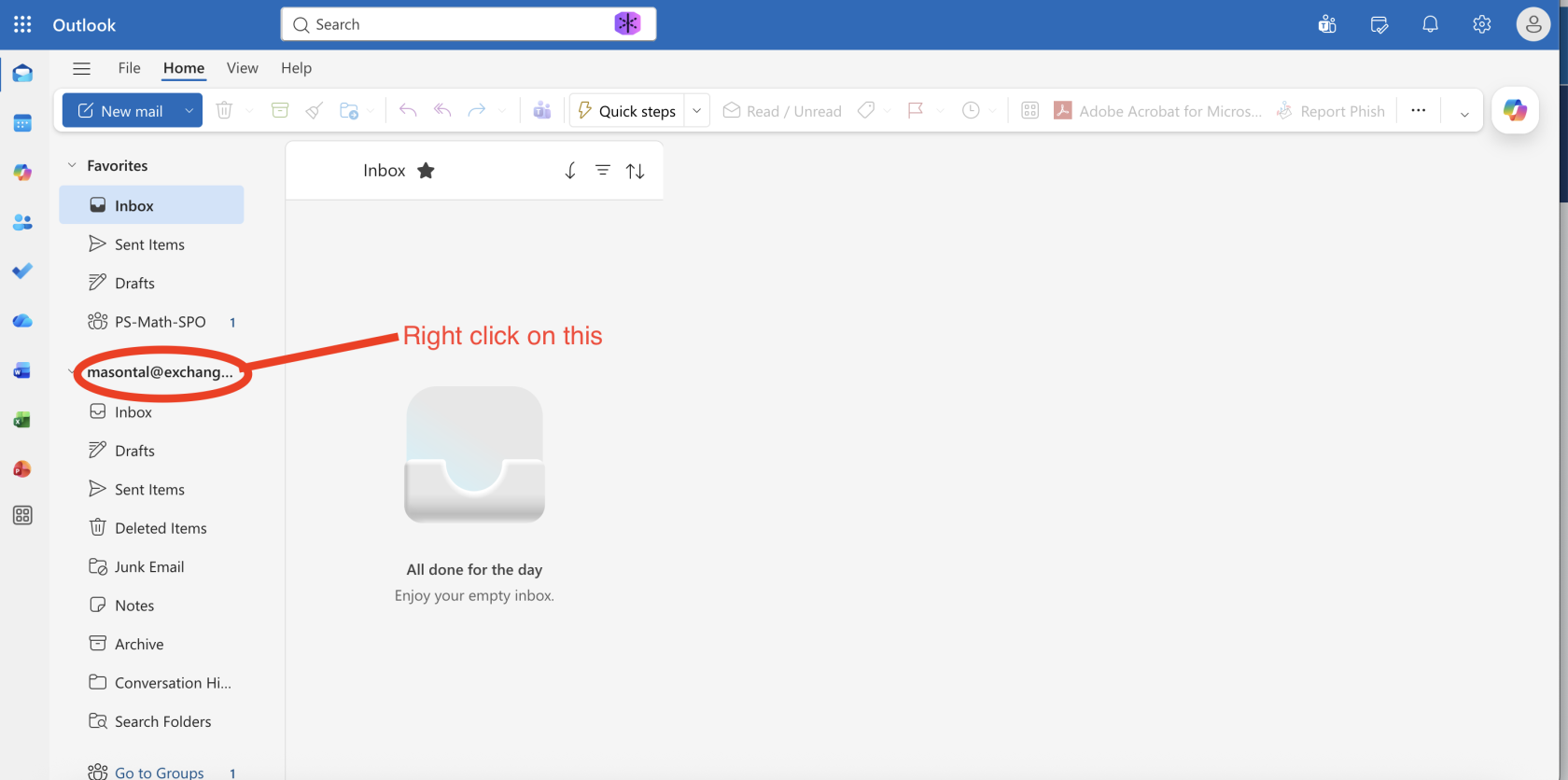
- On the left side bar, right click on your email
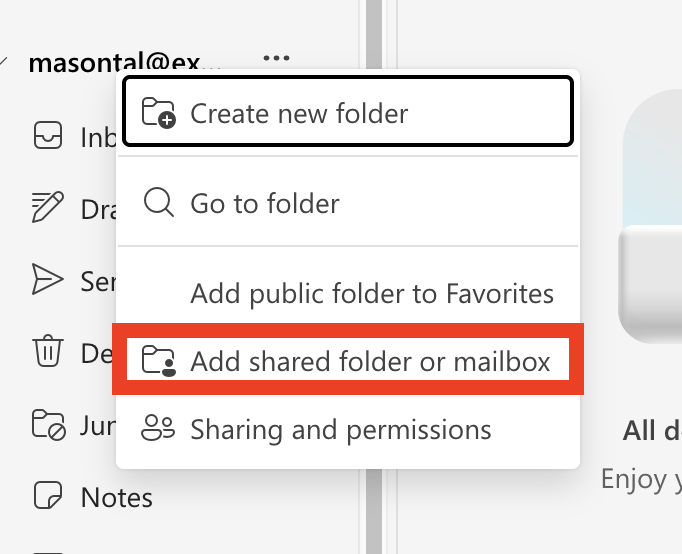
- Click 'Add shared folder or mailbox'

- Type in the email address of the shared mailbox and click continue
On Outlook for Windows
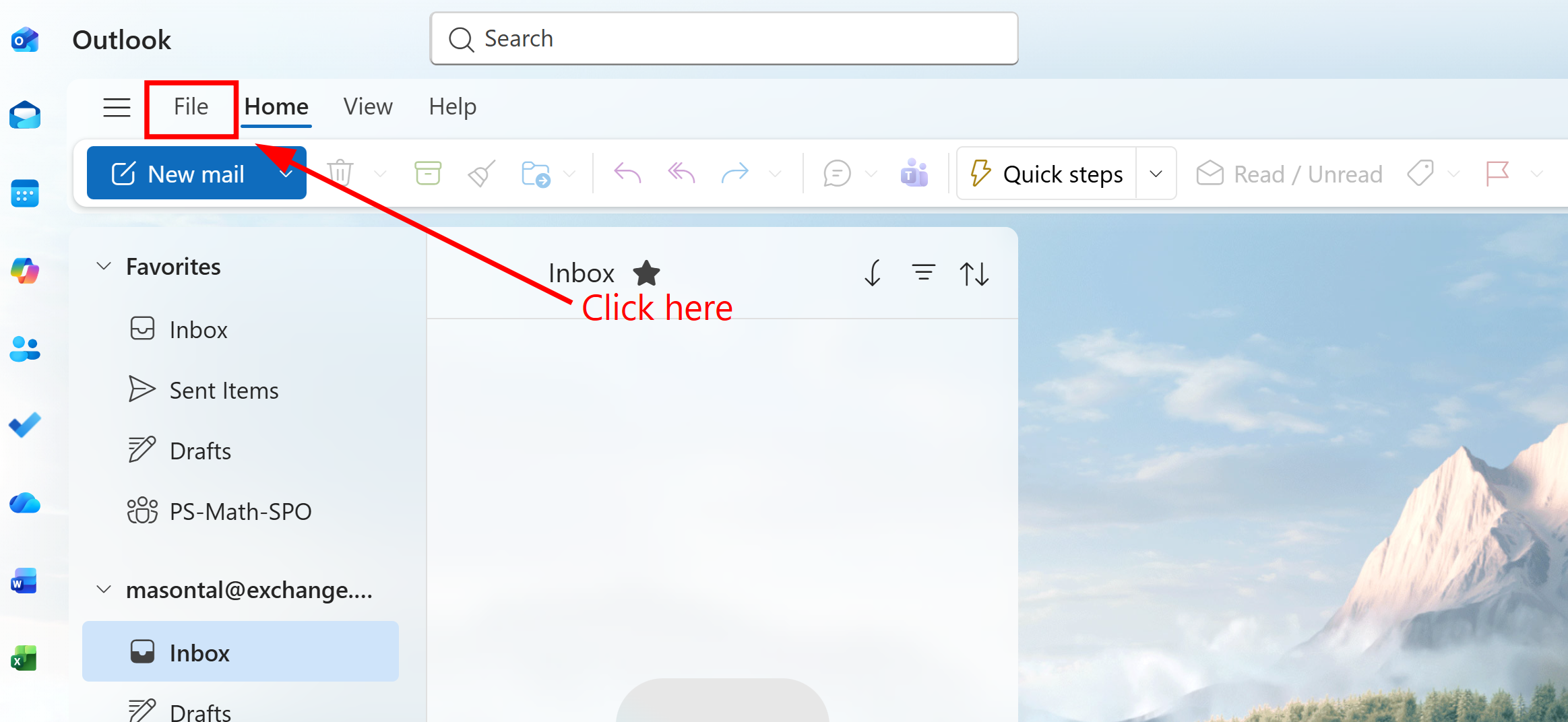
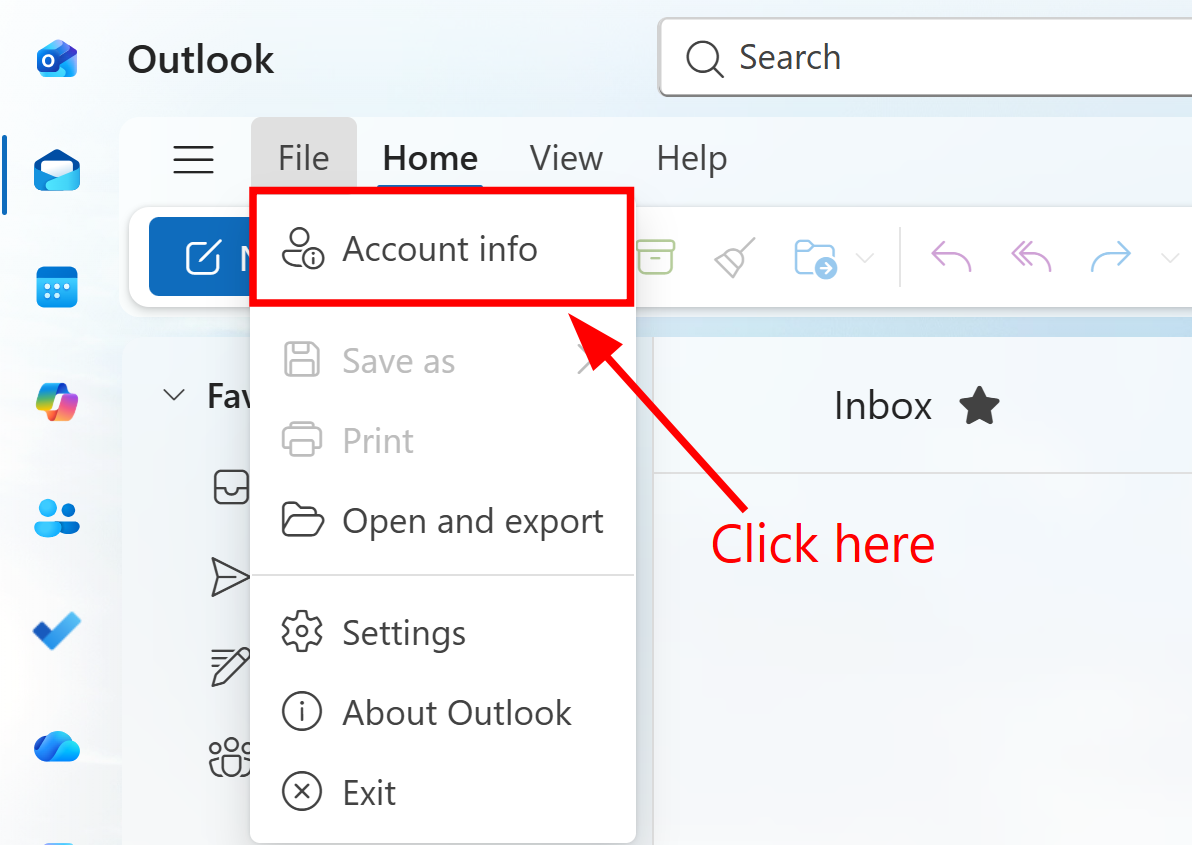
1. Select the 'File' tab in the top left corner
2. Click 'Account info'
3. A window with your account settings should pop up. Click on 'Accounts,' then 'Shared with me.' Then click 'Add'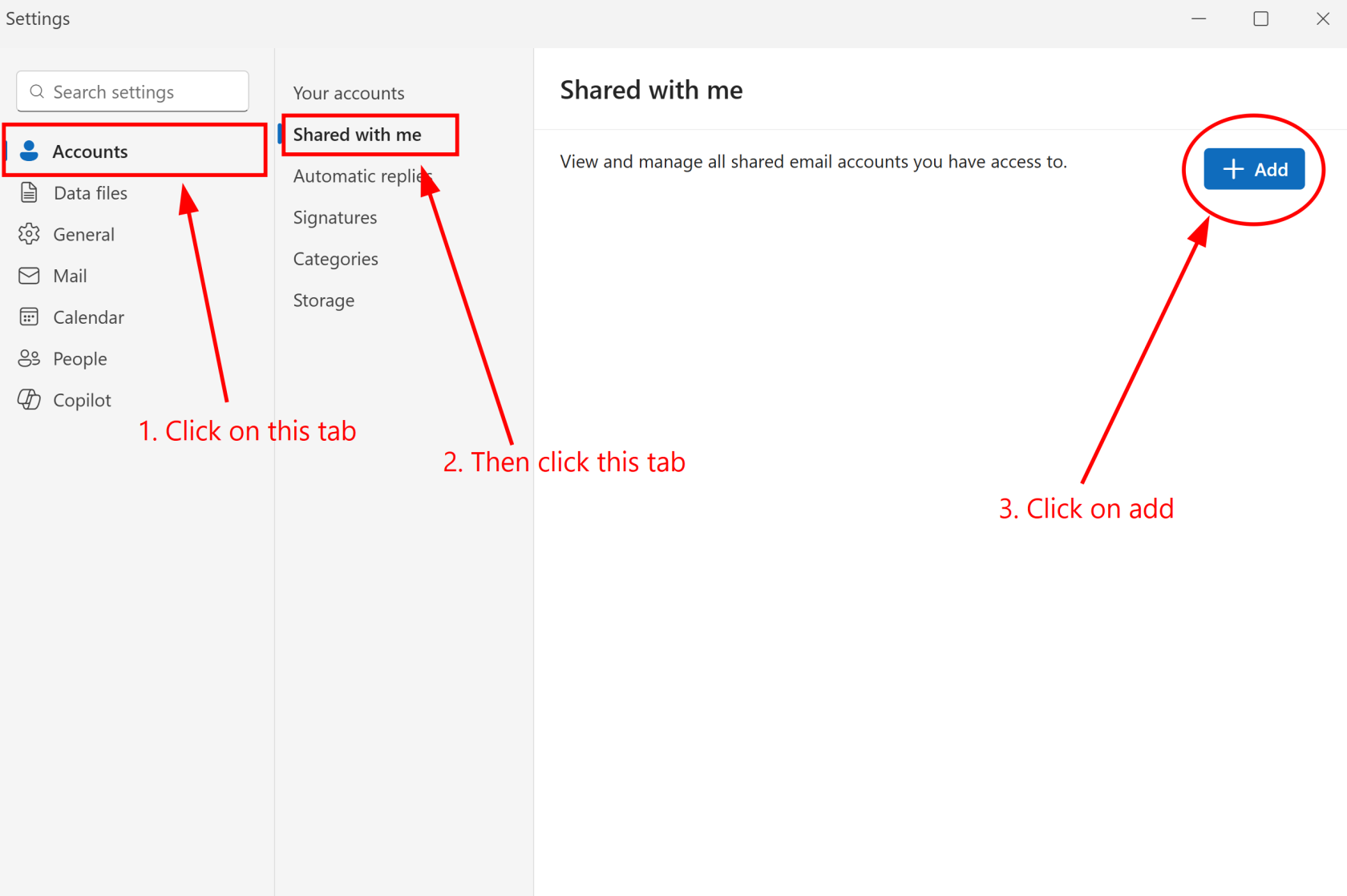
4. Type in the email address of the shared mailbox and continue.
On Outlook for Mac
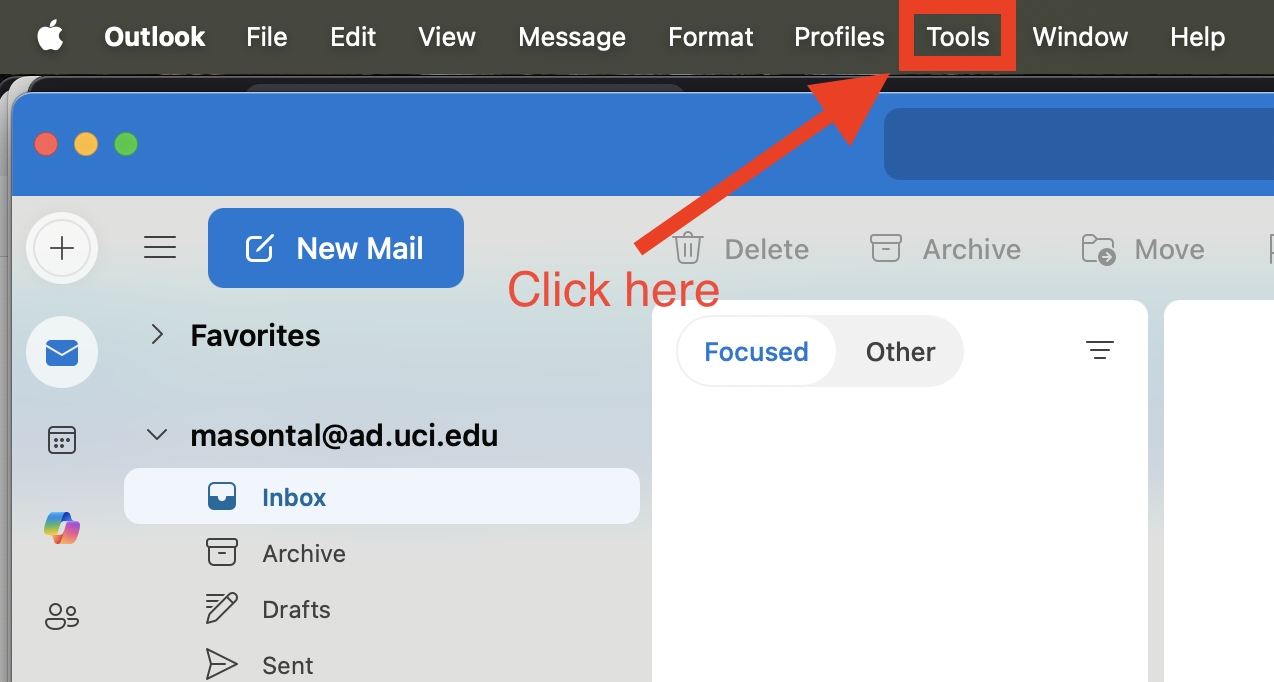
1. Open Outlook, then click on tools in the menu bar
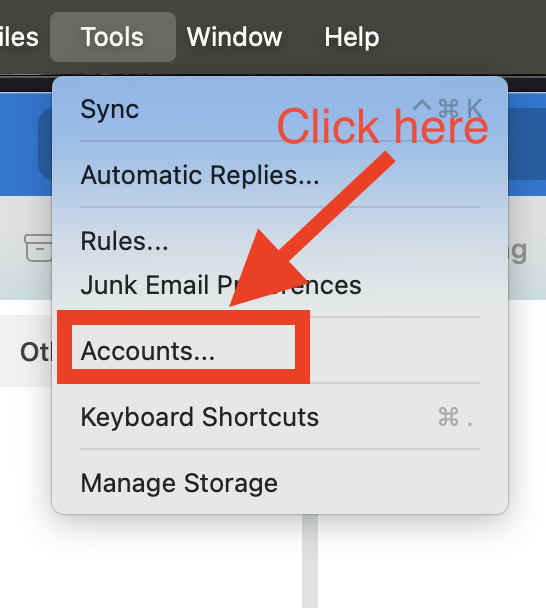
2. Choose accounts and then select your account that has access to the shared mailbox
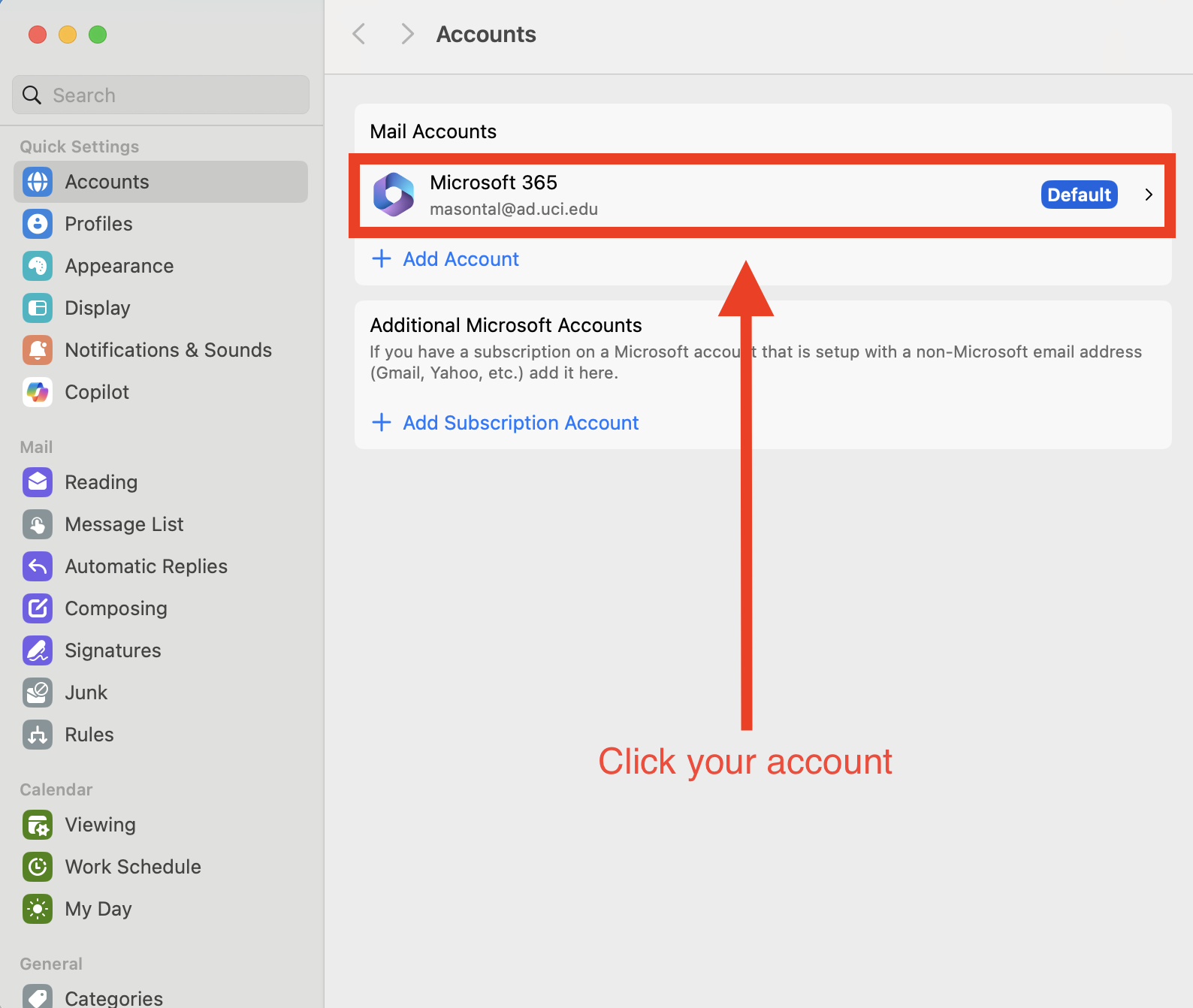
3. Click on 'Delegates & Sharing'
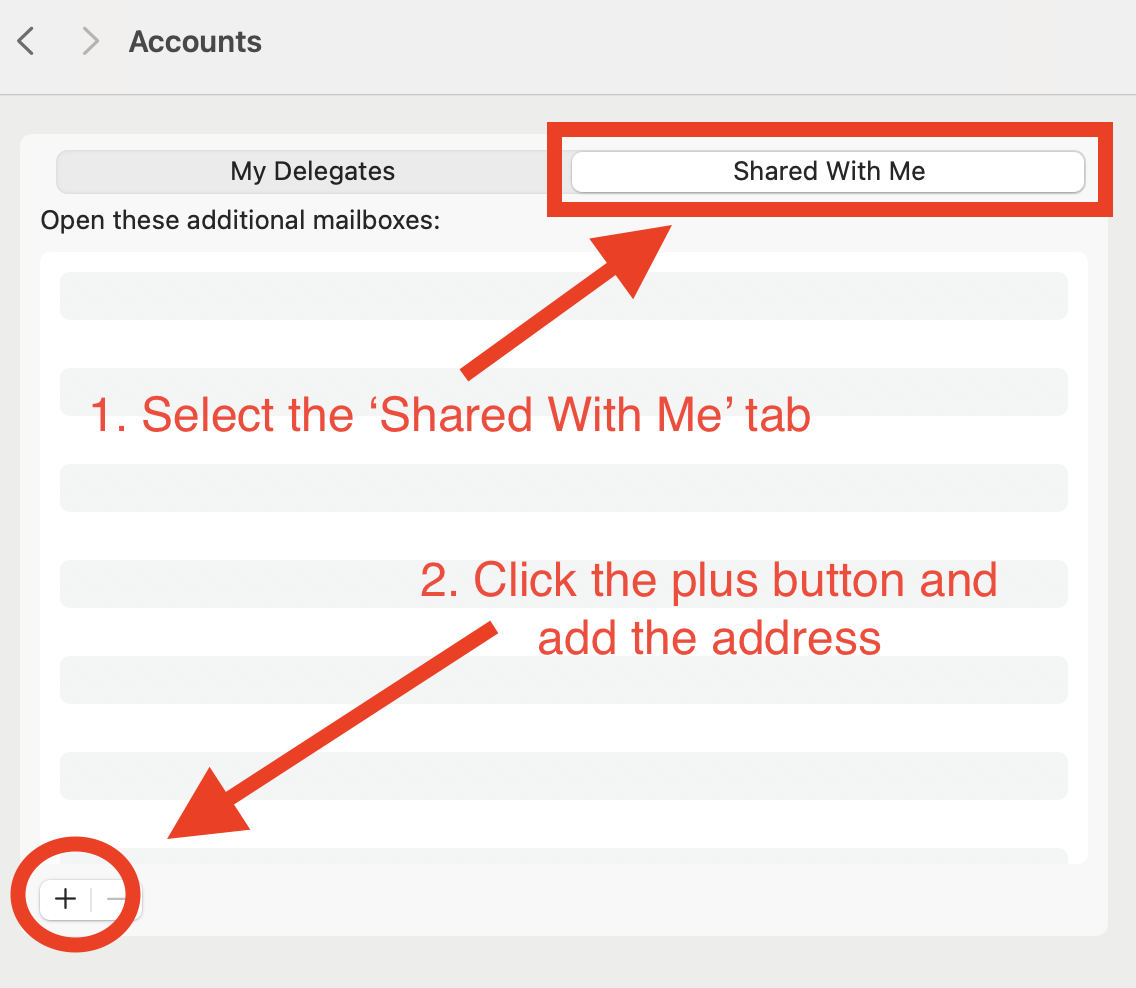
 Open the 'Shared With Me' tab and then click the add button in the bottom left to add the email address of the shared mailbox.