# How to Install Chemdraw Mac
1. After you request the license via [https://ps.uci.edu/software/chemoffice](https://ps.uci.edu/software/chemoffice) -> [https://tools.ps.uci.edu/signals/](https://tools.ps.uci.edu/signals/), you will receive two emails from Revvity: one welcoming email and one for the password reset. Please follow the link in the password reset email. [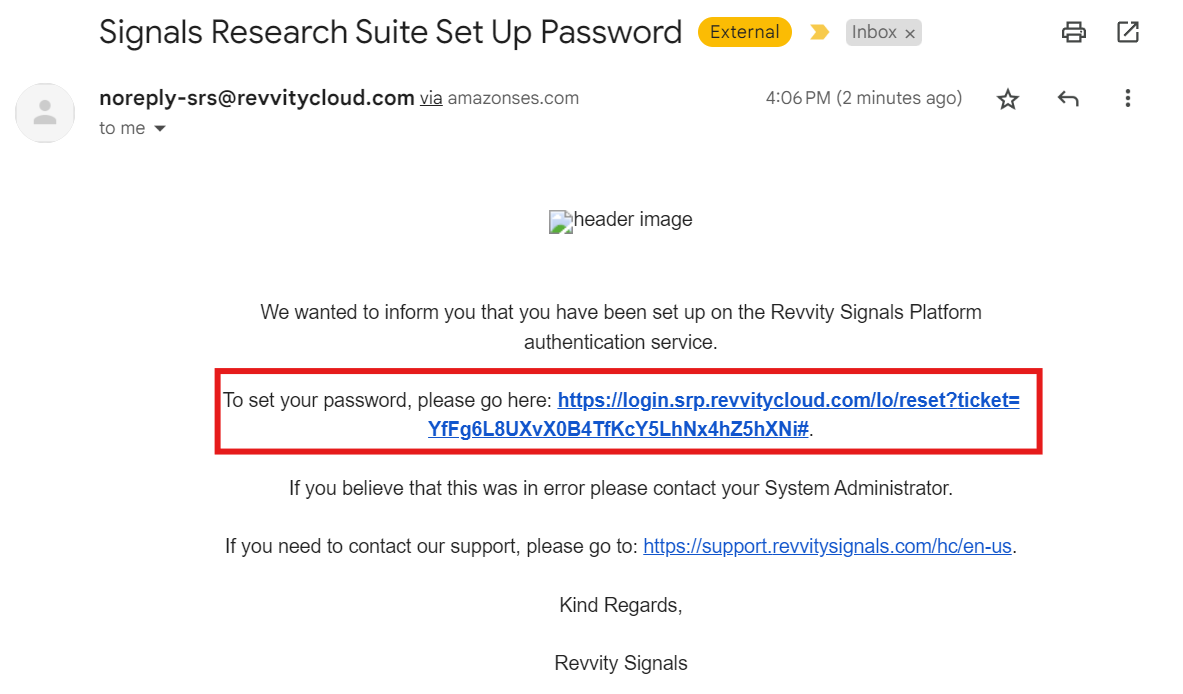](https://knowledge.ps.uci.edu/uploads/images/gallery/2024-10/vQlJ86EM8pThYylK-screenshot-2024-10-01-161015.png)
2. Go to [https://ucisite.signalsresearch2.revvitycloud.com](https://urldefense.com/v3/__https://ucisite.signalsresearch2.revvitycloud.com__;!!CzAuKJ42GuquVTTmVmPViYEvSg!JMBkBpqdozi9SQIm-9h4nqEipur8XGv5hIoEXOPrIC6OWxnf4MzS-UuAWLqdNGDJFmd0O1DZExyp5NwwUGhJkR0d6aesag%24) and sign in with your username (which is your [ucinetid@uci.edu](mailto:ucinetid@uci.edu) and your password from the previous step)
**NOTE: If you did not get the email from step 1 in 5-10 minutes, click on the ? icon at the sign-in page to reset your password.**
[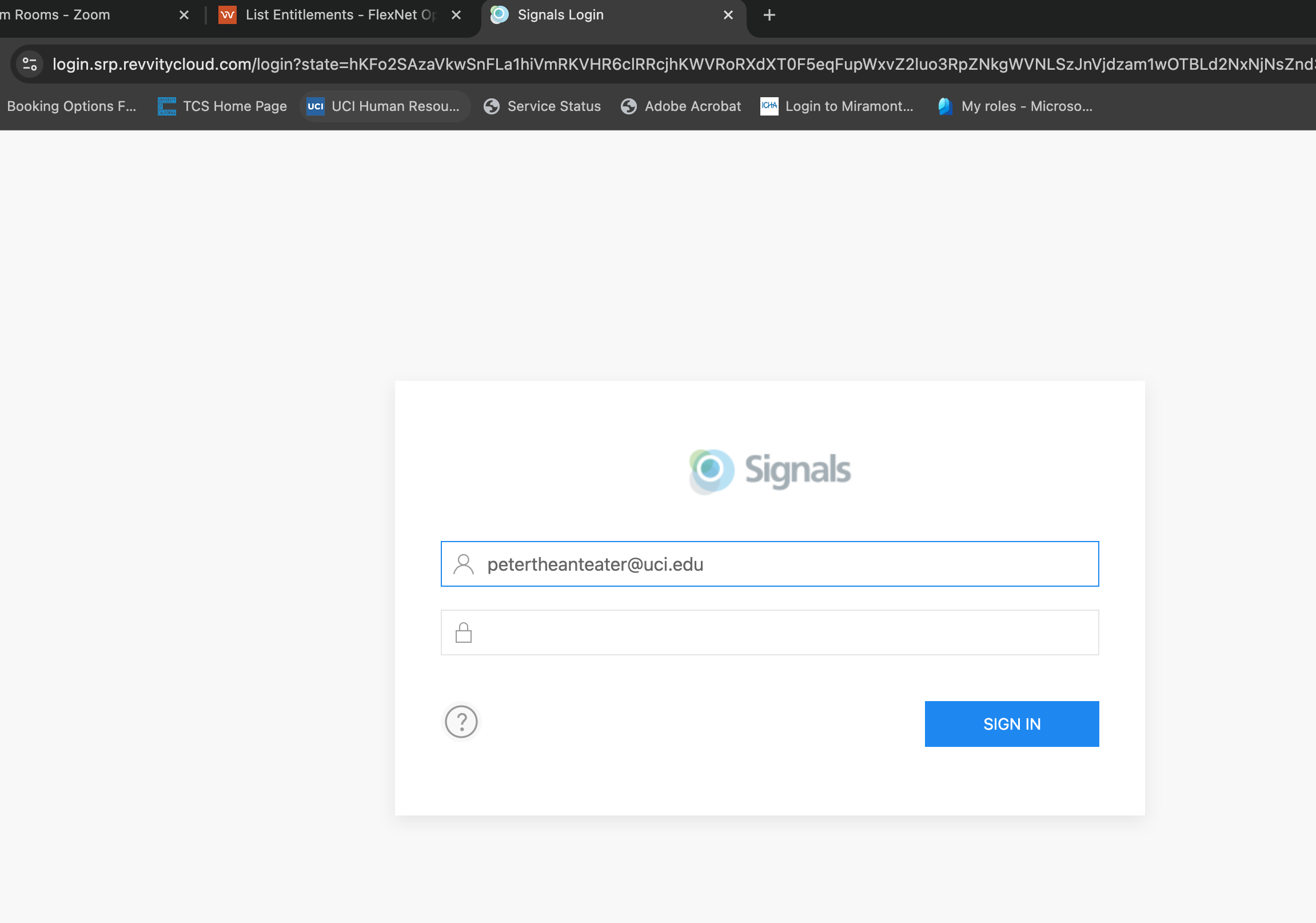](https://knowledge.ps.uci.edu/uploads/images/gallery/2024-09/sg6B4Slzh7oBbuNk-2024-09-30-13-02.png)
3. Click "ChemDraw Desktop" on the product, on the pop up windows, click on "Click here to download the installer" [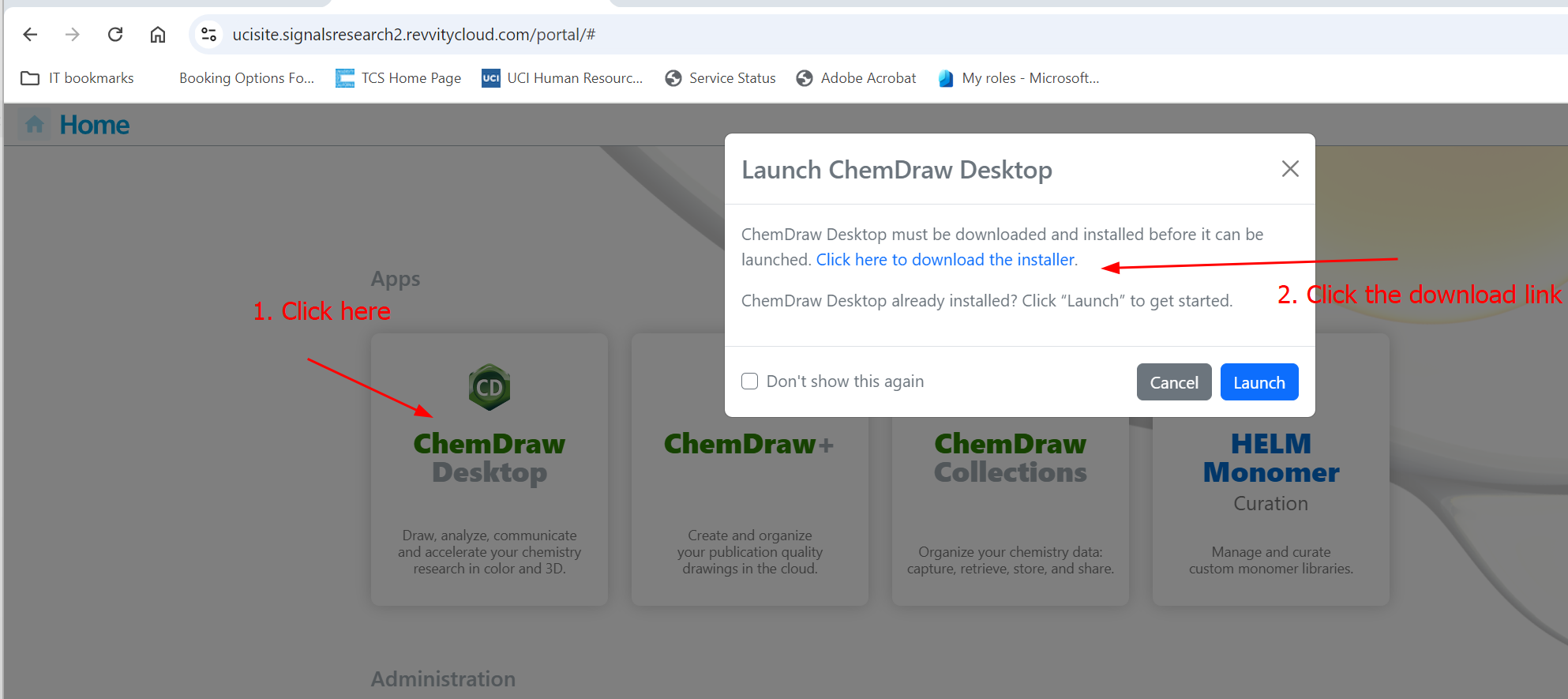](https://knowledge.ps.uci.edu/uploads/images/gallery/2024-09/wsCQ3s3hTxapmFbT-image.png)
4. Download the software
it will download cd2x.xx.xx.dmg file.
5. Double-click the dmg file you downloaded [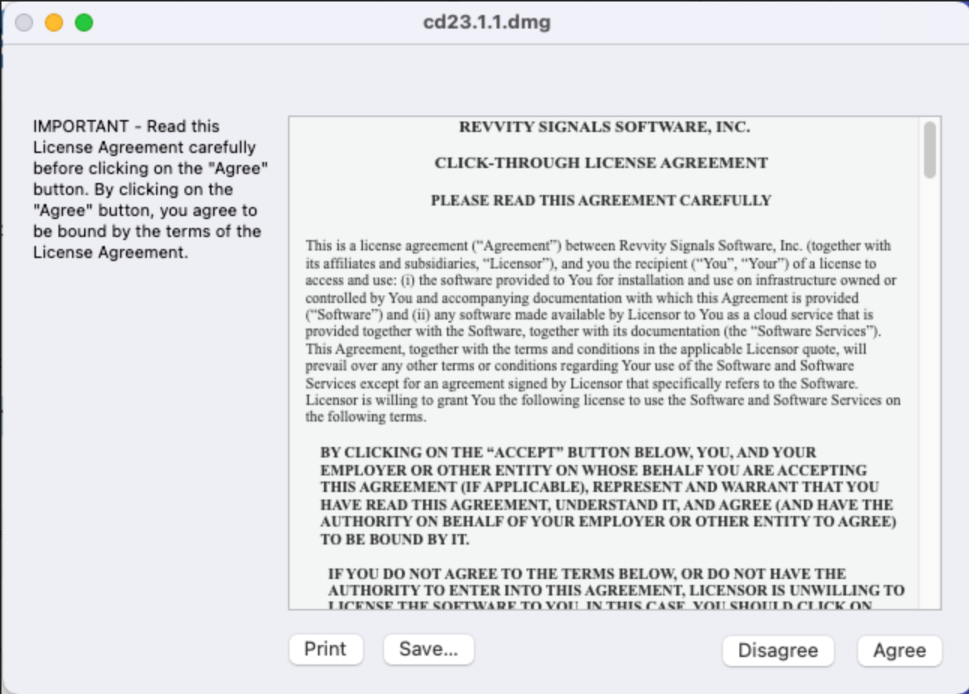](https://knowledge.ps.uci.edu/uploads/images/gallery/2024-04/uO3a7OPrb8UVJ5D3-image.png)
6. \\ Follow the instruction on this pop-up window. (move the icons from the left to right) [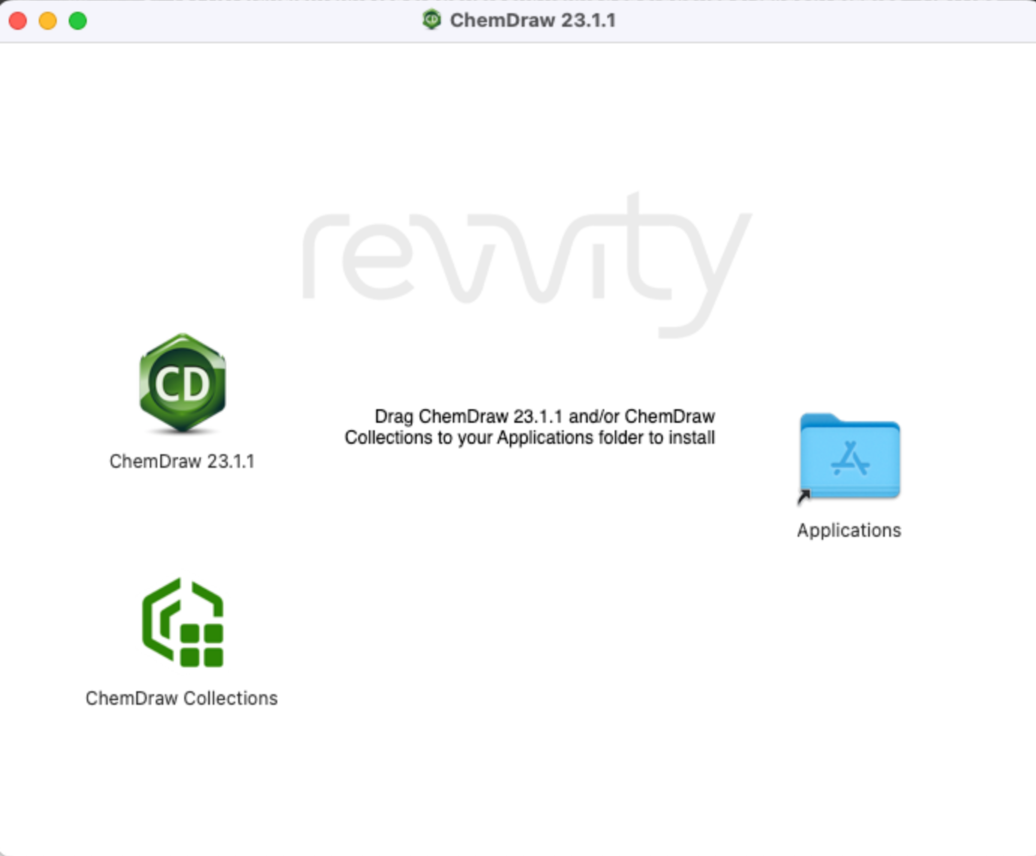](https://knowledge.ps.uci.edu/uploads/images/gallery/2024-04/eLSXXhVj7Y8D7wBG-image.png)
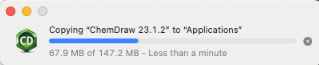
7. Go to “Applications” folder and double-click on ChemDraw Professional to launch the application
[](https://knowledge.ps.uci.edu/uploads/images/gallery/2026-02/823egJqnzh5dmwAc-image.png)
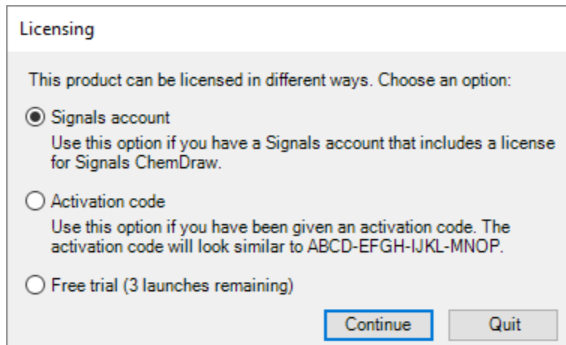
You need to choose "signals account", and it will take you to Revvity sign in page.
[](https://knowledge.ps.uci.edu/uploads/images/gallery/2024-09/mEwhsQvRbAvPEubS-image.png)
7\. Enter this URL in the following pop-up window
https://ucisite.signalsresearch2.revvitycloud.com
8\. Click “Install.”
9\. Go to “Applications” folder or “Lauchpad” to find the “ChemDraw Professional”. Click to launch the application.