# Windows Code V Installation Instructions
1. Download “CODEV202503FCS.exe” from [https://joko.ps.uci.edu/index.php/s/sBnkT6fbimTp3GK](https://joko.ps.uci.edu/index.php/s/sBnkT6fbimTp3GK) Please use the password that provided by your faculty.
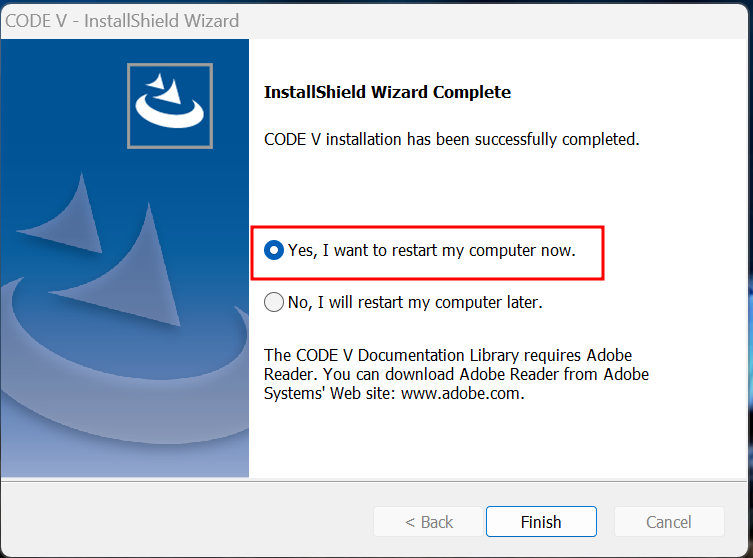
NOTE: This installation requires you to restart your computer when it is finished installing...
2. Double click on the downloaded file.
3. Click “Yes”
![A Windows to click Yes](https://knowledge.ps.uci.edu/uploads/images/gallery/2025-04/nBg1Ufmhj9hzY3gb-embedded-image-0zs59smw.png)
4. Click “Next”
![A Windows to click Next](https://knowledge.ps.uci.edu/uploads/images/gallery/2025-04/Fzoap4N0nOr9B5eI-embedded-image-eek9xzyb.png)
5. Click “Yes” To accept license agreement
![A Windows to click Yes](https://knowledge.ps.uci.edu/uploads/images/gallery/2025-04/Ip95AxtakAm6Vzv8-embedded-image-4j2el34b.png)
6. Choose your desire destination folder or you can leave the default location and click “Next”
![A Windows to click Next](https://knowledge.ps.uci.edu/uploads/images/gallery/2025-04/COQFXRXFkSpfeYlj-embedded-image-67qrccfw.png)
7. Choose the user destination folder or leave it as default and click “Next”
![A Windows to click Next](https://knowledge.ps.uci.edu/uploads/images/gallery/2025-04/WcKSVToPvzP21UB8-embedded-image-gql8mha2.png)
8. Click “Yes” to create the user folder
![A Windows to click Yes](https://knowledge.ps.uci.edu/uploads/images/gallery/2025-04/PjCBoCq0v7i4ZirE-embedded-image-0loilmcu.png)
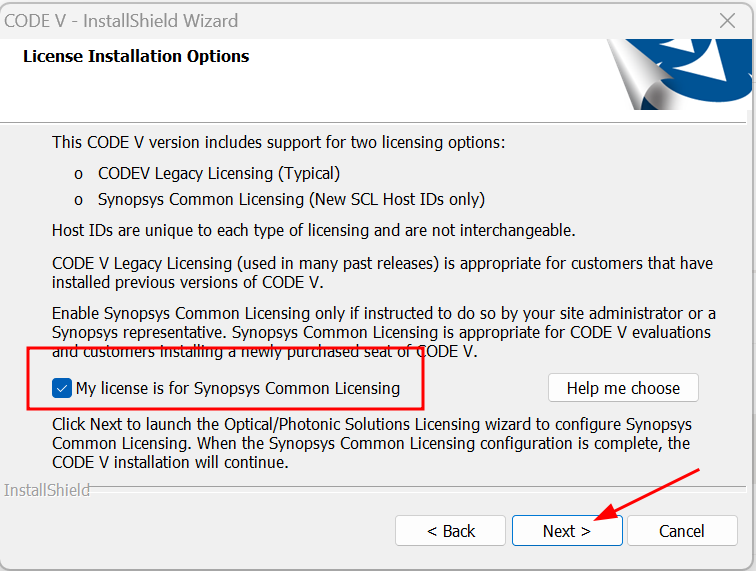
9. Check “My license is for Synopsys Common Licensing” and click “Next”.![A Windows to check the box and click Next](https://knowledge.ps.uci.edu/uploads/images/gallery/2025-04/cIjPcyoROikEwghO-embedded-image-pc6gkhmp.png)
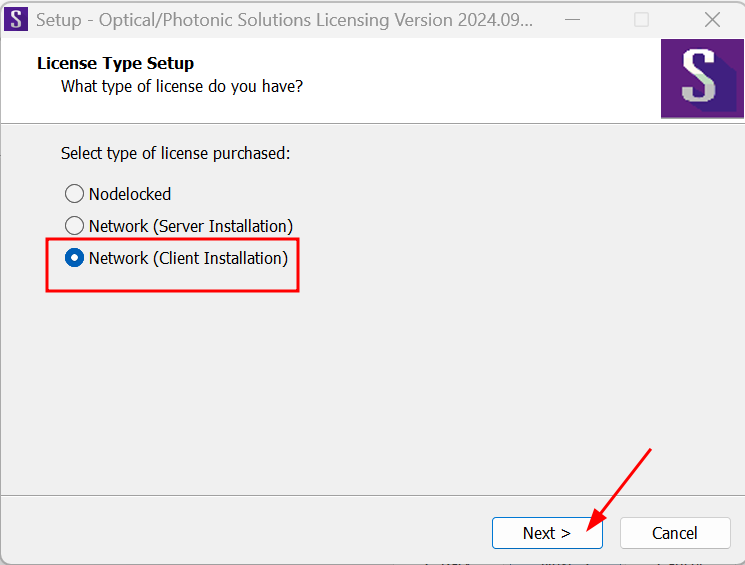
10. Choose “Network (Client Installation)” and click “Next”.![A Windows to check the box for Network (Client Installation) and click Next](https://knowledge.ps.uci.edu/uploads/images/gallery/2025-04/5rFPXydGPBAOxLlh-embedded-image-kngyc6oz.png)
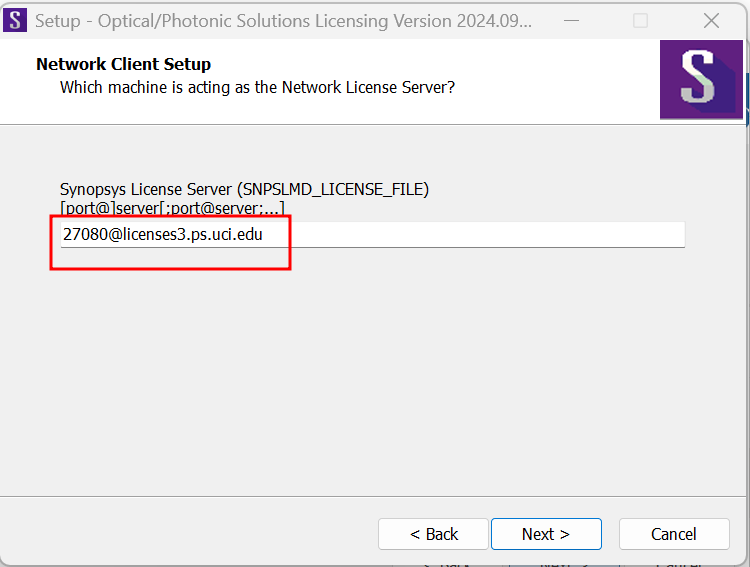
11. Enter license server information 27080@licenses3.ps.uci.edu and click “Next”.![A Windows to Enter server information and click Next](https://knowledge.ps.uci.edu/uploads/images/gallery/2025-04/hffTXDyV0WA9idEq-embedded-image-rigmuzib.png)
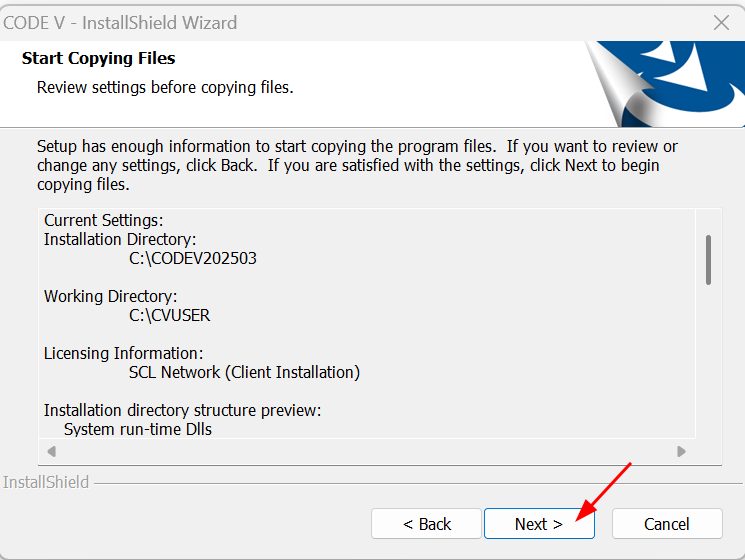
12. Click “Next” after you confirmed all the information is correct.![A Windows to click Next](https://knowledge.ps.uci.edu/uploads/images/gallery/2025-04/hxBgx2ZQKDLQ04ZG-embedded-image-die1sdvj.png)
13. Choose “Yes, I want to restart my computer now.” and click “Finish”.![A Windows to choose to restart the computer and click next](https://knowledge.ps.uci.edu/uploads/images/gallery/2025-04/RJtLSsTG5EGxIc3P-embedded-image-3b1xkeyk.png)
14. After restarted your computer, CODE V program shortcut icon should be on your desktop screen like the one below.
![A Windows Desktop showing CodeV shortcut](https://knowledge.ps.uci.edu/uploads/images/gallery/2025-04/gyjkR68GJP2wNvkH-embedded-image-xu2imeym.png)
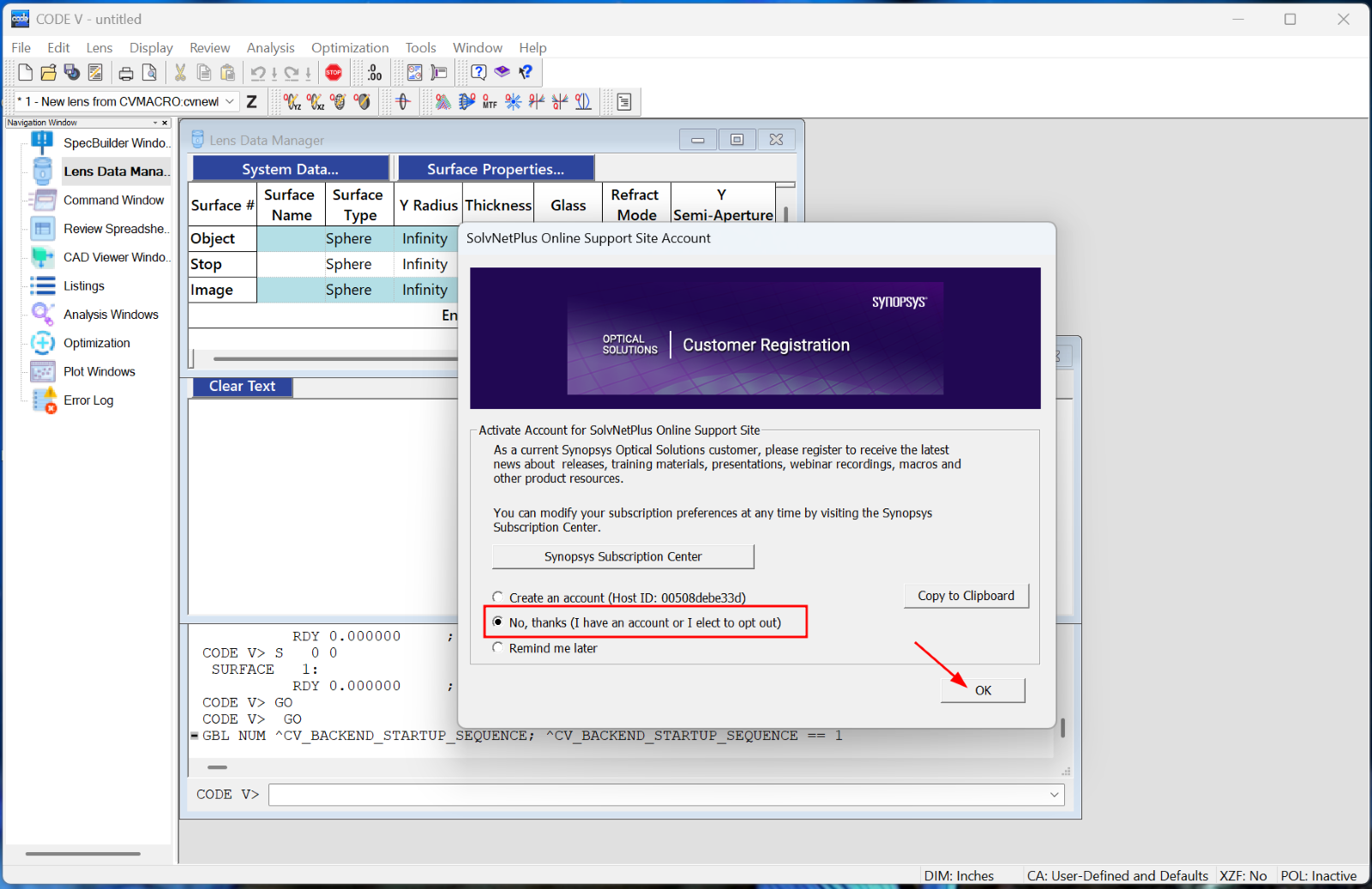
15. Choose “No, thanks” not to create an account and click “OK”.![A Windows to choose No Thanks and click OK](https://knowledge.ps.uci.edu/uploads/images/gallery/2025-04/hsXNMlU3uURZN5EY-embedded-image-rk8basz8.png)
16. You can start using CODE V Software.