# Adobe Information & Installation Instructions
Adobe is NOT free anymore.
Full-time employees, such as faculty and staff, are currently covered by the school for Adobe Acrobat Pro in **FY 25/26**.
If you need to purchase an Adobe Creative Cloud product, such as Photoshop or Illustrator, you will need to do so with UCI funds via the UCI AntSoft catalog. School is NOT covering for Adobe Creative Cloud.
The costs are
Adobe Acrobat Pro - $12.00 per fiscal year
Adobe Express Premium - $ 36.00 per fiscal year
Adobe Creative Cloud - $60.00 per fiscal year
More detailed information is below.
[https://www.oit.uci.edu/services/end-point-computing/adobe-software/](https://www.oit.uci.edu/services/end-point-computing/adobe-software/)
To purchase Adobe via the UCI AntSoft Catalog, only full-time employees can place an order. If you need to place an order for your GRA, Post Doc, etc., a full-time employee will place it for them using a valid KFS code.
For SDL (Shared Device License) - please contact pshelpdesk@uci.edu. SDL is MAINLY for people who share the same device to use Adobe Products, such as front-desk computers and lab computers. It cannot be installed on any other device; one license per device.
# Adobe Installation Instructions
# Installation instructions
If you do NOT have the software installed, follow these steps.
1. Visit [https://creativecloud.adobe.com](https://creativecloud.adobe.com/) and enter your UCI email address in the format UCInetID@uci.edu and then select Continue. NOTE: Do not click the other buttons to sign in with a ‘social login’ such as Google or Apple. Also, do not enter your my.name@uci.edu as it will not work.
2. When prompted, select “Company or School Account“.
3. You will then be taken to the UCI Log in page. Enter your UCInetID and password to continue.
4. On the right under the “Quick Links” heading, select Install Creative Cloud app.
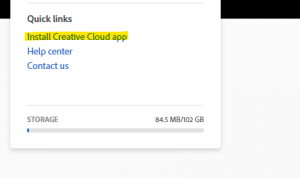
5. The Creative Cloud setup file will download. Double-click to run it and follow the prompts to install the Adobe Creative Cloud app.
6. After the install is complete, return to the "**Sign in instructions**" above.